
If you can’t find the answer to your question below or in the FAQs then please contact us at support@kubify.co
Key information
WGC are using Kubify’s Learning Toolbox for the conference ePosters.
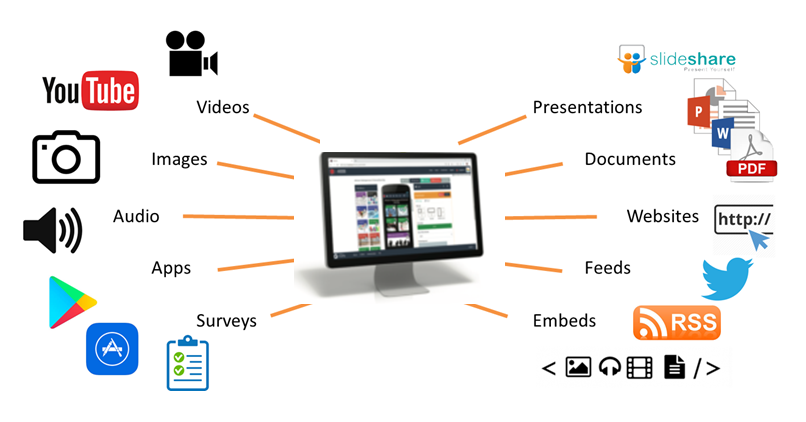
Your WGC ePoster can contain much more than just your poster file.
Learning Toolbox allows you to create a collection of material (we call it a stack) that can be used to present and share your work during and after the conference. At the simplest level you can just add your poster file to your ePoster stack, but the platform allows you to do much more. Learning Toolbox stacks can also contain additional materials such as presentations, videos, weblinks, papers and more. So you can include whatever material you have that helps people to understand and apply your work.
How will delegates engage with the ePosters onsite?
Delegates will be able to browse, search, view and interact with the ePosters stacks on their own devices (smartphones, tablets or laptops) and at the onsite ePoster screens.
There will be three key ways that delegates can access the ePoster stacks:
- through the showcase website
- on the onsite ePoster screens
- you will be able to share a link direct to your ePoster
The ePoster showcase website
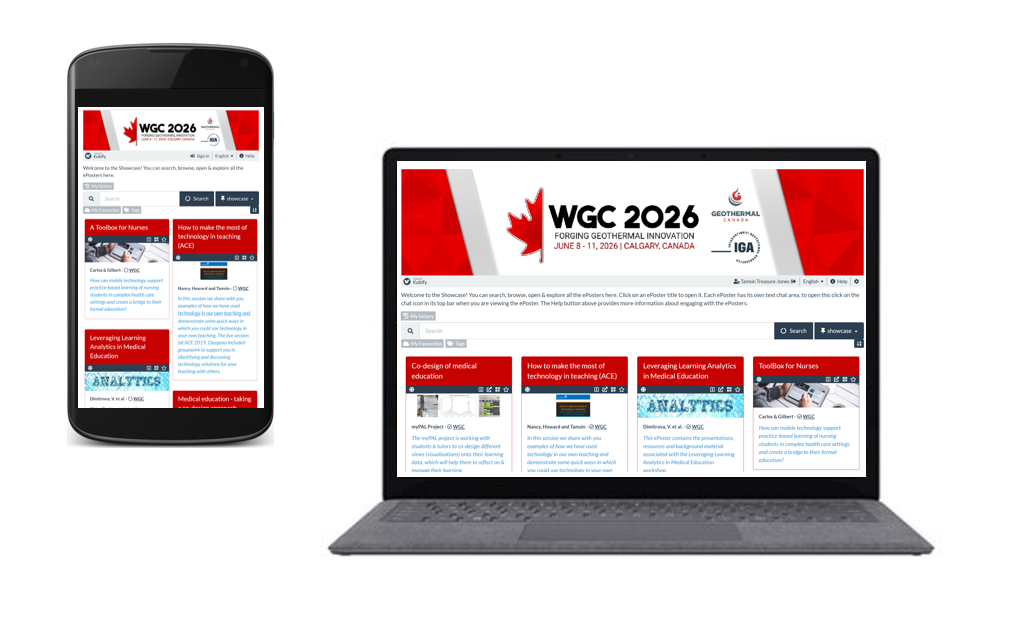
All of the ePosters will be published to the ePoster showcase website. The conference team will let all delegates know how to access the showcase website. On the showcase website, delegates can browse, search, open and explore all of the WGC ePosters.
Onsite ePoster screens
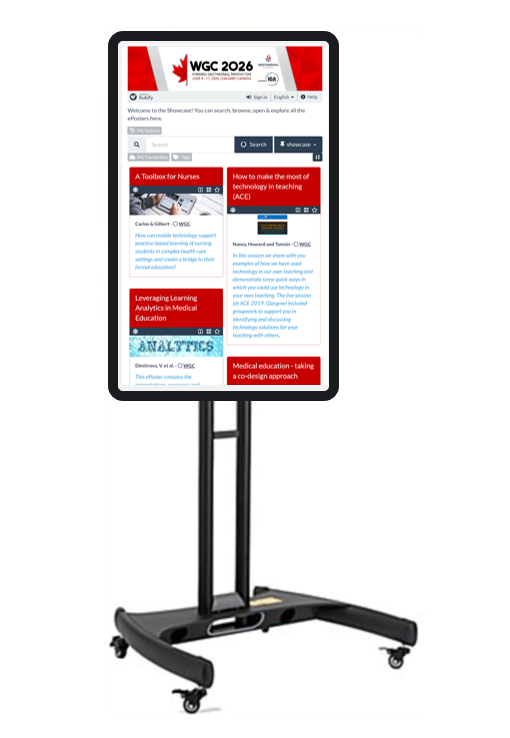
There will be ePoster screens (internet connected screens) onsite from where delegates can browse the ePoster showcase and open and explore your ePoster stacks. These screens will be in standard portrait orientation. At any point you can bring people to any one of these screens and show them your ePoster stack and explore any of the content that you have added to it.
Directing people to your ePoster
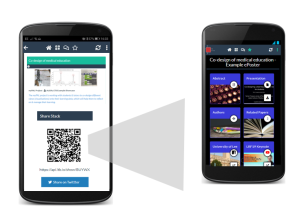
It will be easy to direct people to your ePoster wherever you are. Each ePoster has its own web link and QR code. You can send people the web link or show them the QR code. If they click on the link or scan the QR code then they will be taken directly to your ePoster. The aim is to make it easy for you to share your ePoster with others wherever you are.
You will also be able to continue to use your ePoster to present and share your work after the conference. The ePosters will remain hosted and available for at least the year of the conference.
Engaging with the ePosters – viewing, discussing, favouriting
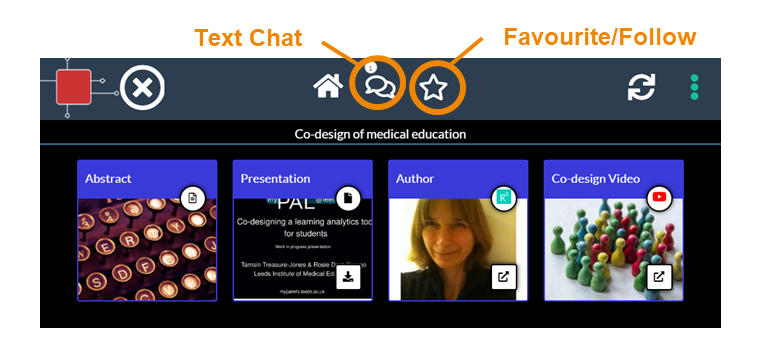
When delegates open your ePoster stack they can click on the tiles to view and interact with all the content you have added. They can also post questions or comments to your ePoster, to which you can respond. This text chat discussion will be attached to your ePoster and can continue after the event. You can opt to get email notifications of new chat on any ePoster including your own. Delegates can also favourite your ePoster so that they can return to it more easily.
Poster sessions onsite
Poster sessions will be held during the conference at the ePoster screens. The conference organisers are currently finalising the details for these sessions and more information will be shared with authors as soon as it is available.
The information we have, so far, is that authors will each be given a 30 minute time slot (during a lunch or coffee break) when they should be at a specified ePoster screen to meet with delegates and discuss their work.
The organisers are not expecting you to give a 30 minute presentation, it is instead an allocated time when delegates will know that they can come to meet you to find out more about your work and ask you questions. We will let authors know as soon as we have the schedule from the conference organisers.
These poster sessions will take place at the ePoster screens. The screen will show the ePoster showcase and you will be able to open your ePoster stack and show any of the material that you have included in it.
Delegates will also be able to explore and post questions to your ePoster throughout the conference (and aftewards), so there will be plenty of opportunity for engagement and discussion.
Before the conference, you will already be able to check your ePoster on your own computer and practice your presentation using the preview button in Learning Toolbox.
What support will be available?
You will have plenty of support to use Learning Toolbox before and during the conference. There will be a webinar for authors on 27th March, an email helpdesk (support@kubify.co) will be available to answer your ePoster questions in the run-up to the conference and there will be an onsite ePoster helpdesk at the conference if you have any last minute questions.
We will also send important reminders to you by email. Those emails will come from support@kubify.co or mail@ltb.io Please add these addresses to your email contact list to help avoid the emails going to your Spam folder
The following dates are important:
- 20th March Invitation emails sent to ePoster authors from Learning Toolbox (mail@ltb.io)
- 27th March at 2pm (London, UK Time) – Webinar for authors.
- 11th May DEADLINE – Check your ePoster stack in Learning Toolbox and mark it as ready
- 18th May – The ePoster showcase will be open for delegates to explore
The live webinar was held on 27th March. You can watch the recording of the webinar below. To see it in full-screen just click on the full screen icon at the end of the play bar.
Webinar recording
Presentation used in the webinar
Below you can also view and download the presentation that was used during the webinar.
Poster sessions will be held during the conference at the ePoster screens. We received the final poster schedule on 28th May and have now emailed all the ePoster authors with these details.
Each author has been given a 30 minute time slot (during a lunch break) when they should be at a specified ePoster screen to meet with delegates and discuss their work.
The organisers are not expecting you to give a 30 minute presentation, it is instead an allocated time when delegates will know that they can come to meet you to find out more about your work and ask you questions.
These poster sessions will take place at the ePoster screens. The ePoster screens will be in the Exhibit Hall at the conference venue.
Your screen will show the WGC ePoster showcase and you will be able to search for your ePoster stack, open it and show any of the material that you have included in it.
Delegates will also be able to explore and post questions to your ePoster throughout the conference (and aftewards), so there will be plenty of opportunity for engagement and discussion.
There will be no paper posters, so please do not print and bring a paper poster. The posters will all be presented from the WGC ePoster Showcase.
There will be an ePoster Helpdesk in the Exhibit Hall, close to the ePoster screens. So you can come and ask us any ePoster-related questions at any time during the conference.
You can find out more information about how the WGC ePosters will work here.
Creating your ePoster/Stack
This video gives you a very quick introduction to Kubify’s Learning Toolbox and shows you how to make an ePoster stack. We recommend that you play this video in full screen.
Press the full-screen icon  at the end of the play bar to play in full-screen.
If your country does not allow access to the Vimeo video streaming service then you can access this video here instead.
This video is a longer introduction to Learning Toolbox which shows a fuller ePoster being created.
Press the full-screen icon at the end of the play bar to play in full-screen.
If your country does not allow access to the Vimeo video streaming service then you can also access the video here.
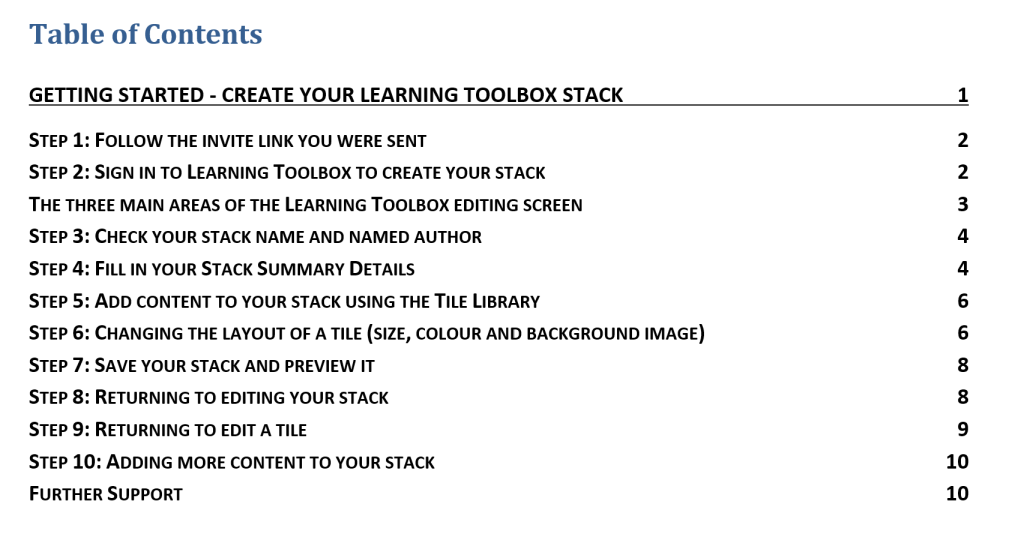
We know that some people prefer to follow a written guide, so we have produced this short guide that takes you through the key steps involved in making a simple ePoster/stack for a conference.
Explore some inspiring ePosters from a range of conferences and events
Many conferences are now using Learning Toolbox to present, share and discuss research. We have seen some great examples of ePosters/stacks created by authors attending these conferences. The 3 minute video below explores some of the great ePosters made by authors using Learning Toolbox.
If your country does not allow access to the Vimeo video streaming service then you can access this video here instead.
You can see and interact with these great ePosters (and more) on the Learning Toolbox Showcase. These ePosters are live and still being used by authors to present and share their work. You will see that they vary in terms of what content they include and how they are structured, but they have all made great use of the platform to present their work.
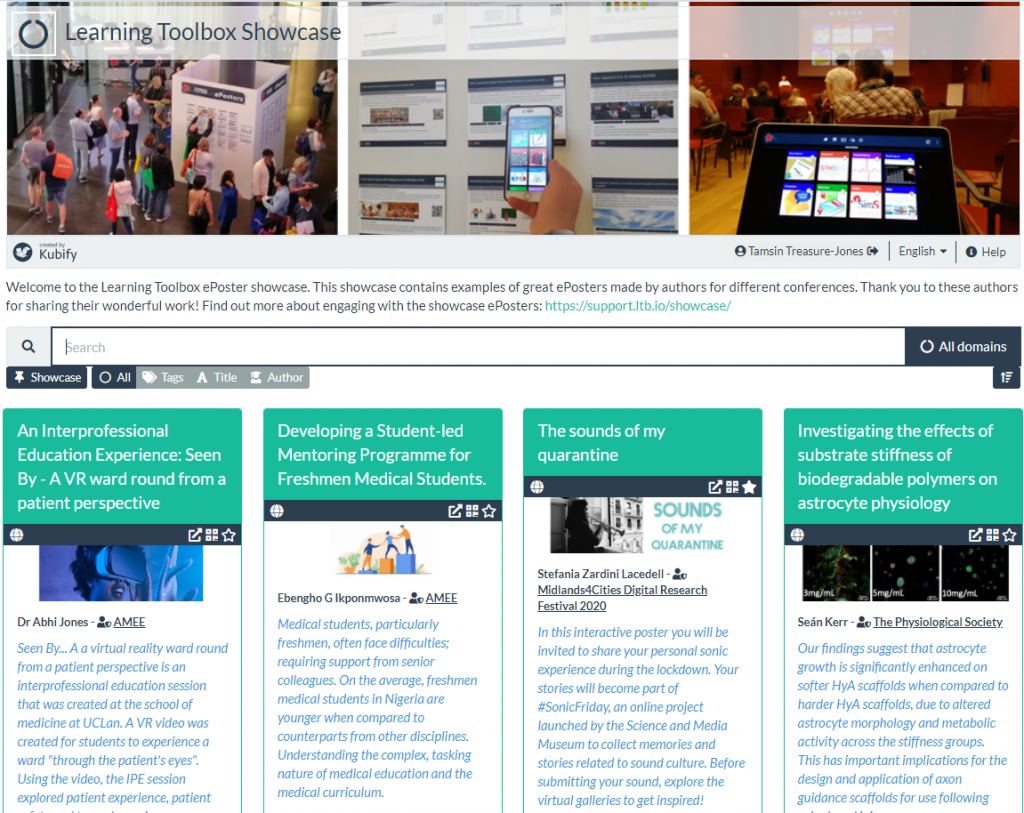
Of course your own ePoster/stack does not need to be as sophisticated as these examples – a simple and effective ePoster/stack may just contain the abstract, a presentation and a link to a website for example. But we hope these examples may give you an idea of what is possible and some ideas of the type of material you could include to give people a richer view of your work.
We would like to thank the authors of these ePosters/stacks for agreeing to their excellent work being showcased here. If you have come across any brilliant Learning Toolbox ePosters that you would like to see added to this showcase then please let us know so that we can contact the author and ask for their permission to add them.
Thousands of ePoster authors are using Learning Toolbox to share and present their work at conferences and events. The ePosters can be as simple as an uploaded PDF file, but can also include more interactive and engaging material, as well as background information.
Below are short videos with 4 of our authors in which they talk about what they chose to include in their ePosters. Thank you very much to Amy, Komal, Nathan and Sytske for making these videos. We hope they inspire and help new authors.
Quick overview of what Amy, Komal, Nathan and Sytkse found useful about using Learning Toolbox
This 5 minute video highlights what Amy, Komal, Nathan and Sytske found most useful about using Learning Toolbox. It helps to show the different ways in which authors and conferences are using Learning Toolbox to help present and share research work effectively.
If your country does not allow access to the Vimeo video streaming service then you can access this video here instead.
Amy Creaser’s ePoster for Future Physiology
Amy gives a short introduction to her work (on wearable activity trackers use by children and adolescents) and shows us her ePoster. In the ePoster tour Amy explains what she chose to include in her ePoster and why. The ePoster tour starts at 2:10
If your country does not allow access to the Vimeo video streaming service then you can access this video here instead.
Komal Atta’s ePoster for AMEE
Komal gives a short introduction to her work (on the impact of social media on professional identity) and shows us her ePoster. In the ePoster tour Komal explains what she chose to include in the ePoster and why. The ePoster tour starts at 2:20
If your country does not allow access to the Vimeo video streaming service then you can access this video here instead.
Nathan Kucko’s ePoster for NASS
Nathan gives a short introduction to his work (on developing a bone graft for spinal fusion surgery) and shows us his ePoster. In the ePoster tour Nathan explains what he chose to include in the ePoster and why. The ePoster tour starts at 2:03
If your country does not allow access to the Vimeo video streaming service then you can access this video here instead.
Sytske Lub’s ePoster for AMEE
Sytske gives a short introduction to her work (on science communication when talking about genetics) and shows us her ePoster. In the ePoster tour Sytske explains what she chose to include in the ePoster and why. The ePoster tour starts at 4:06
If your country does not allow access to the Vimeo video streaming service then you can access this video here instead.
Frequently Asked Questions (FAQs)
You can find answers to more detailed questions on the FAQ page or by pressing the in-line help button (?) in the interface next to the item that you want to know more about.