
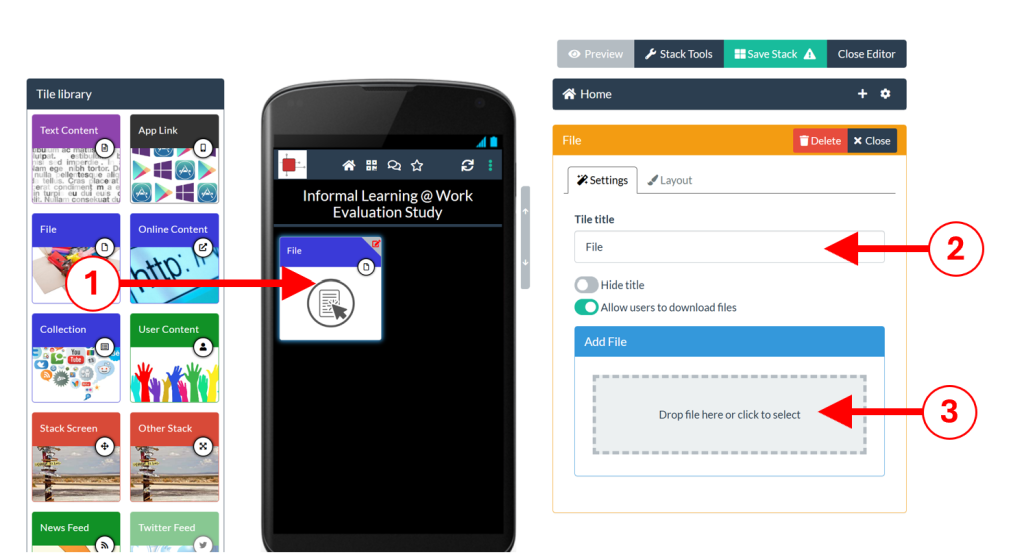
You can add a PowerPoint presentation using the File Tile. Drag and drop a File tile from the Tile Library into your stack (1), in the Settings tab, give your tile a Title (2) and Add (3) the PowerPoint file from your computer.
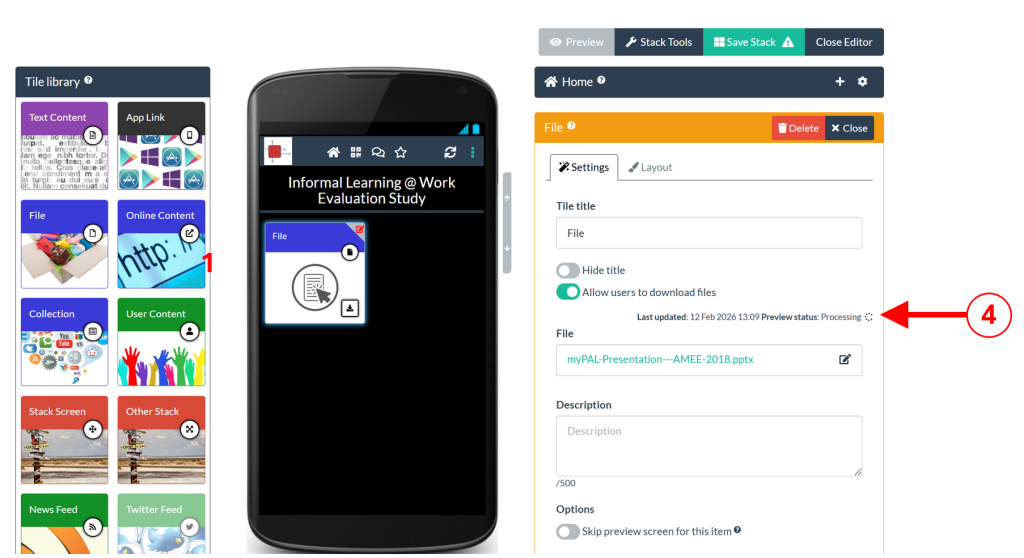
Learning Toolbox will automatically convert your PowerPoint presentation into a PDF file so that it can be viewed inside the PDF viewer within the Learning Toolbox app or within any web browser. This conversion takes a little time and there will appear a message telling you it is being processed (4). When the processing is finished then you will see the first slide in your presentation appear as the background image on your File Tile. You can edit the tile layout (including the background image) in the Layout tab.
Please note there is a 400MB file size limit on files uploaded using the File Tile. However, we would recommend that you keep your files much smaller in size if possible since large file sizes will not produce the best experience for the viewer (due to loading times).