
Tips on presenting your e-poster
- Just give the highlights. You only have a short time (5 minutes maximum for presentation and 5 minutes for questions), so do not try to tell everything about your work. Just tell people the most interesting highlights/results – the story of your work.
- Make sure that everything you need is inside your e-poster stack. You will be presenting from the stack, so make sure that anything you want to show is in your e-poster stack.
- Tell people what else they can find inside your e-poster but you do not need to show everything during the presentation. If you have a lot of content in your e-poster then you will not have time to show it all during the presentation. But you can tell people where they can find more in the e-poster stack. Delegates can explore your full e-poster stack before and after your presentation.
Practising your presentation by opening your e-poster from the showcase
You can do this once your e-poster has been published to the showcase.
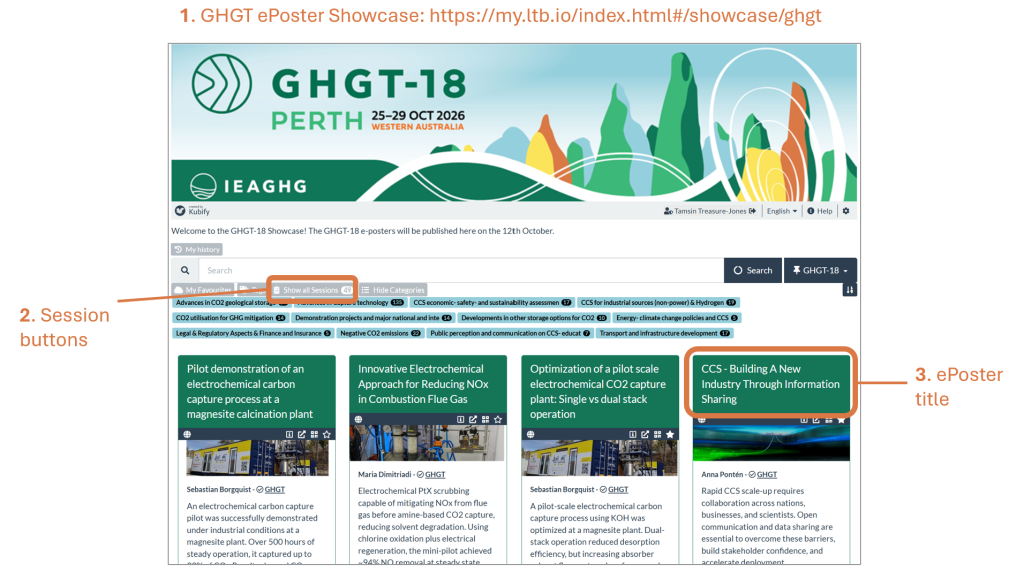
- Open the GHGT-18 e-poster Showcase https://my.ltb.io/index.html#/showcase/ghgt on your computer (it will already be opened on the e-poster station at the conference)
- Show all the session buttons and click on your session’s title (this will already have been done on your e-poster screen at the conference). The view will then only show the e-posters in sessions with that session title.
- Scroll down the screen to find your e-poster stack and click on its title to open it. The e-posters are ordered by Day and Time.
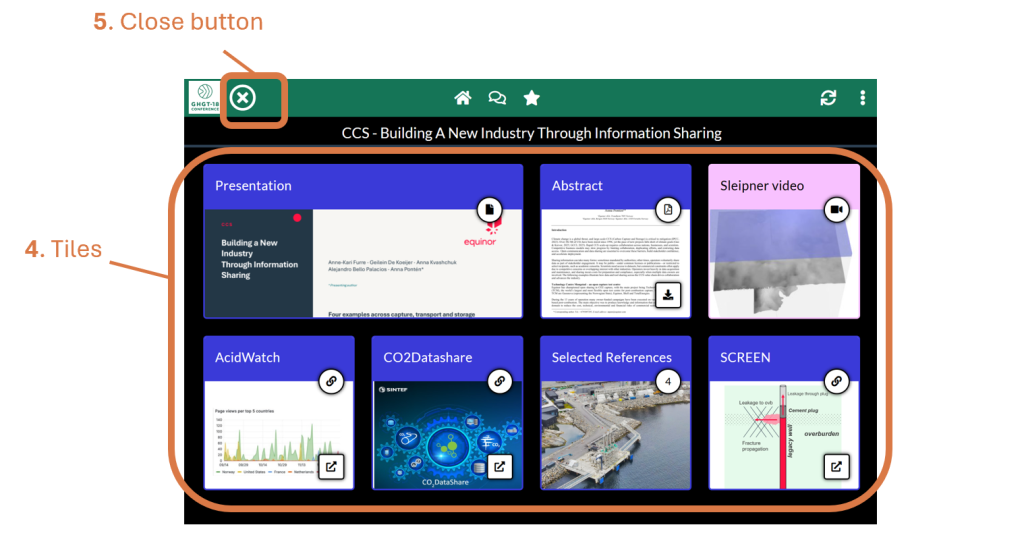
- You can then click on any tile in your e-poster stack to open and show its content.
- When you finish your e-poster presentation then click on the X button to close your e-poster stack.
Additional hints and tips on presenting certain file types
Showing a presentation file in full screen
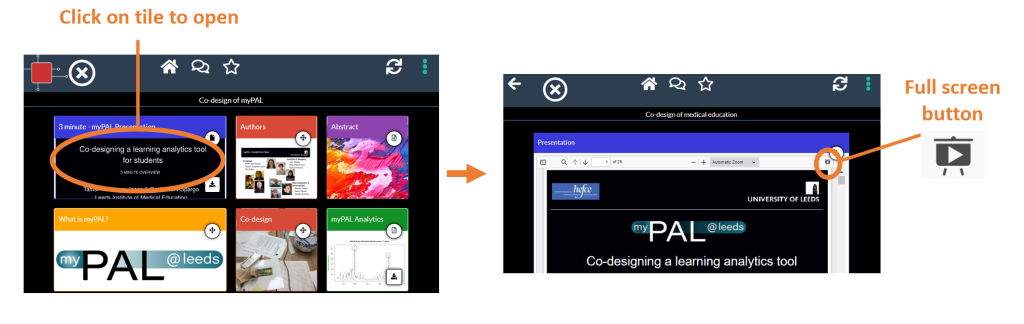
Many people include a short PowerPoint presentation in their e-poster and present that during the live presentation. If you have a presentation file in your e-poster stack then click on its tile to open it in the PDF viewer. You can then click on the full-screen button to show the presentation in full-screen view and click through it as normal. To exit the full-screen view click on your keyboard’s Esc key.
Please note that uploaded PowerPoint files are turned into PDF files so that they can be viewed on any device (without requiring viewers to have PowerPoint installed). This means that animations or embedded videos within your PowerPoint file will not play. However, you can include videos as separate tiles in your e-poster stack and so you will be able to move to show those when you want to during your presentation. You do also have the option (in PowerPoint) of saving your PowerPoint file as a video. You can then upload the video file to your e-poster stack and use that video itself during your presentation. But (as the screens do not have speakers) please do not rely on viewers hearing the video’s audio during a presentation. Viewers will be able to hear the video’s audio if they are browsing the e-poster later on their own device.
Zooming in and out of a large poster file
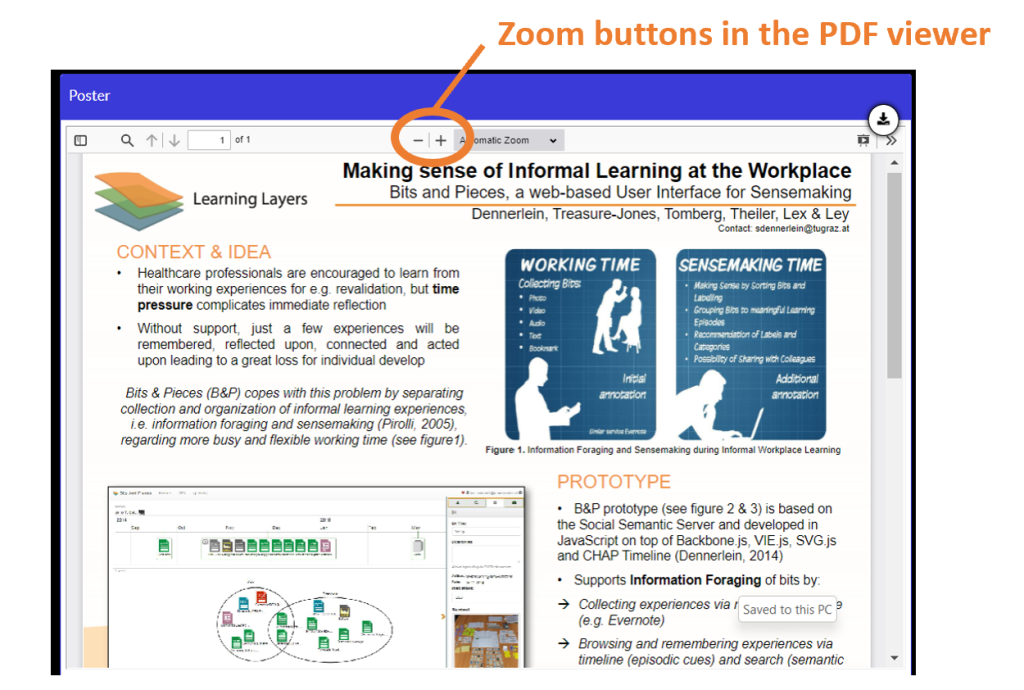
It is not possible to zoom in and out of a file once it is opened in full screen. But you can use the Zoom buttons and the mouse to zoom in and out of a file when viewing it in the PDF viewer. We would recommend caution when using Zoom onsite since the response speed will depend on the WiFi bandwidth.
If you have any questions about presenting your e-poster then contact our helpdesk support@kubify.co
Return to the information about how the GHGT-18 e-poster presentations will work.